
How to Check Image File Size Before Uploading (and Why It Matters)

Complete Guide to Checking Image File Size Before Uploading (2026)
Most image problems on the web happen before a page even loads. The image was too large when it was uploaded, and nothing downstream fixed it. A CMS will store whatever file you give it. A CDN will deliver it. A browser will try to render it. But none of these steps will tell you the file was too big to begin with.
Checking image file size before upload is the single intervention that prevents the entire chain of performance problems that follow. This guide covers exactly how to do that, what size thresholds to target by image type, how to use a Lighthouse image audit to surface existing problems, and the fastest way to get any image to the right size before it reaches your site.
TL;DR — Key Takeaways
- Check image file size before upload, not after, to prevent performance issues at the source
- Target thresholds: hero images under 150 KB, gallery images under 100 KB, thumbnails under 30 KB
- A Lighthouse image audit identifies which images are too large and by how much
- DevTools Network tab is the fastest way to see real file sizes on any live page
- Browser-based tools like MeloTools compress and convert images to target sizes before upload, with no server uploads and complete privacy
Why Checking File Size Before Upload is the Right Starting Point
There is a widespread assumption that image problems can be solved after the fact. Plugins compress, CDNs convert, servers resize. In practice, the most reliable optimisation happens before the file ever reaches your CMS.
When you check image file size before upload, you catch the problem at the point where you have the most control. You have the original file. You can choose the format, the compression level, and the output dimensions. Once an oversized image is in your CMS, every downstream fix requires additional infrastructure, additional cost, or additional maintenance to sustain.
The HTTP Archive Web Almanac consistently reports images as the largest single contributor to page weight across the web. In 2025, the median page on mobile delivered over 900 KB of images. For sites where images account for 40 to 70 percent of total page weight, a pre-upload image check on every file is not extra work. It is the most efficient single habit that prevents slow pages.
Image Size Thresholds for the Web
Image size requirements vary by where the image appears on the page and what function it serves. These are the thresholds that consistently produce good Core Web Vitals scores:
| Image Type | Maximum Target Size | Format |
|---|---|---|
| Hero / banner image | 150 KB | WebP or AVIF |
| Product image (gallery) | 100 KB | WebP or AVIF |
| Blog featured image | 120 KB | WebP |
| Thumbnail | 30 KB | WebP |
| Logo / icon | 10 KB | SVG or WebP |
| Background image | 80 KB | WebP or AVIF |
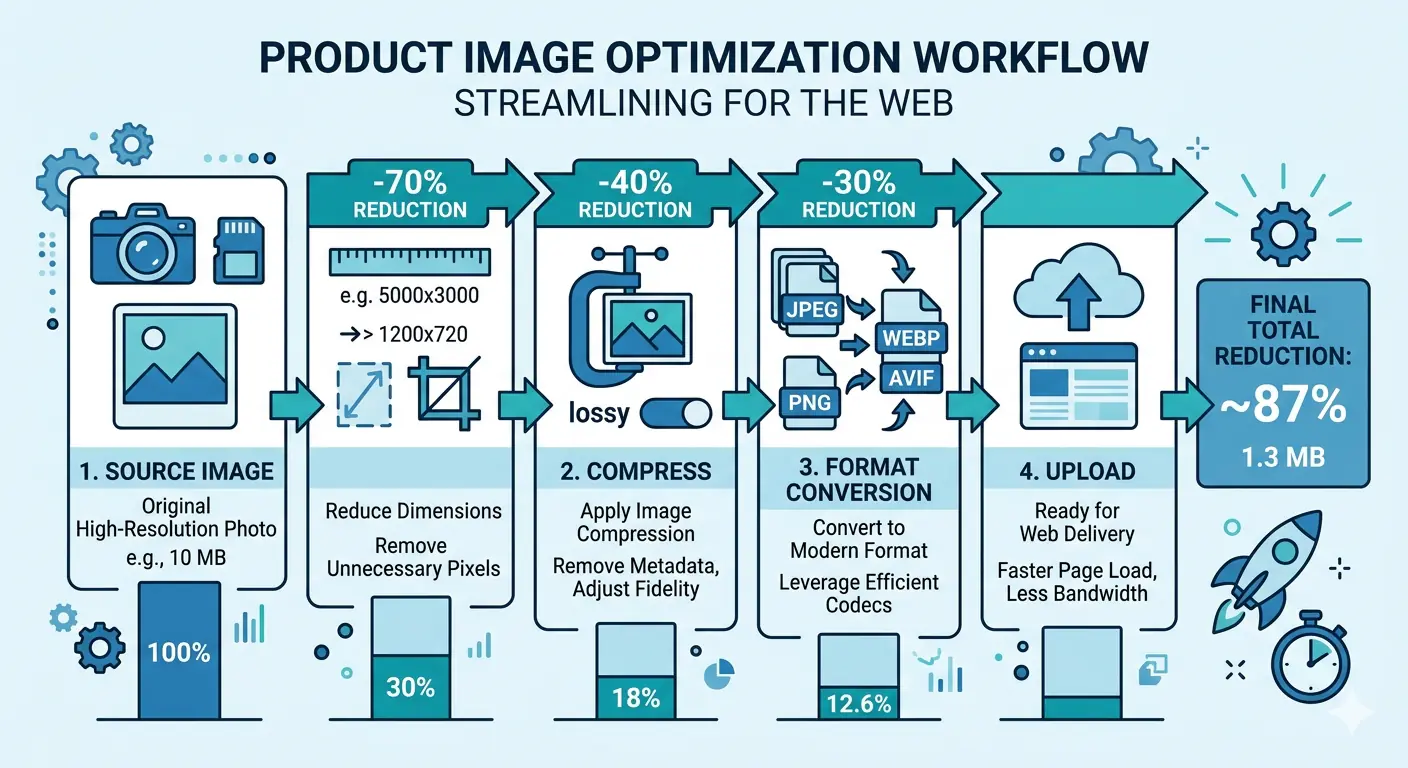
These thresholds assume the image has been resized to its maximum display dimensions before compression. A hero image displayed at 1200px CSS width should be 2400px wide at source to support retina displays, then compressed to WebP. Uploading a 4000px source file — even compressed — will exceed the target threshold because it contains more pixel data than the layout ever displays.
The practical rule: resize to display dimensions first, then compress to the target format. That sequence, done before upload, is the complete pre-upload image check workflow.
How to Check Image File Size Before Uploading
Method 1: Operating System File Inspector
The simplest image file size checker is built into every operating system.
On Mac: right-click the image → Get Info → look at the Size value. The number in parentheses is the actual file size in bytes.
On Windows: right-click → Properties → Details tab → the File size field shows the exact byte count.
This is sufficient for a single image before upload. When you are processing multiple images — particularly a product catalogue, a new article batch, or a full CMS media library — a more systematic approach is faster.
Method 2: Browser DevTools Network Tab
For images already on a live site, the Network tab in Chrome or Firefox DevTools is the most direct image file size checker available.
Open DevTools with F12, click the Network tab, filter by Img, then reload the page. Every image request appears with its transferred size in the Size column. The first number is the compressed size delivered over the network. The second number is the uncompressed size in memory.
Sort by the Size column descending to surface the largest images immediately. Any image above your threshold for its type is a candidate for compression before the next deployment.
This method does not prevent the problem — the oversized images are already live. But it is the fastest way to audit an existing page and identify which files to pull down, compress, and re-upload.
Method 3: Checking File Size in the Browser Before Uploading
MeloTools runs an image file size checker entirely in your browser before any file reaches a server. Upload the image, see the current file size, set a compression target, compress, and download the result — all without the file leaving your device.
The workflow for a pre-upload image check using MeloTools:
- Open MeloTools and select the Compress tool
- Drag in your image or click to browse
- The current file size appears immediately
- Adjust the quality slider to reach your target size
- Check the live preview to confirm quality is acceptable
- Download the compressed file
- Upload the compressed file to your CMS
This takes under a minute per image and is the most private approach available. No file is uploaded to any server at any point — all processing happens in local browser memory. This makes it appropriate for client assets, pre-release product images, and any files covered by a data handling policy.
The full compression workflow, quality settings, and format selection guide is covered in the complete guide to image compression without quality loss.
Running a Lighthouse Image Audit
A Lighthouse image audit surfaces image-related performance issues across an entire page in a single run. It identifies specific files that are oversized, not in next-gen formats, or improperly sized for their display dimensions.
How to Run a Lighthouse Audit
Open Chrome, navigate to the page you want to audit, open DevTools with F12, and click the Lighthouse tab. Set the device to Mobile (this reflects real-world conditions more accurately than Desktop for image audits), check Performance, and click Analyse page load.
The image-specific diagnostics to look for in the results:
Serve images in next-gen formats: Lists images served as JPEG or PNG where WebP or AVIF would reduce file size. Each entry shows the current size and the potential savings in KB.
Properly size images: Identifies images where the source file is larger than the display dimensions require. Shows the oversized image URL and the KB that would be saved by serving the correct size.
Efficiently encode images: Shows images where the compression level is insufficient for the format. A JPEG served at quality 100 when quality 75 would be visually identical appears here.
Defer offscreen images: Identifies images loaded on first paint that appear below the fold. These should use loading="lazy" to improve initial page load time without affecting user experience.
Each diagnostic entry in the Lighthouse image audit links to the specific image URL. Use that URL to identify the file in your CMS or repository, pull it down, compress it or convert it, and re-upload.
Reading Lighthouse Image Audit Results
The Opportunity section shows the total estimated savings in kilobytes and seconds if all flagged images were fixed. This is a useful metric for prioritising which pages to audit first: a page with 800 KB of potential savings should be addressed before a page with 50 KB.
The Diagnostics section provides additional context but does not contribute to the Performance score directly. For image weight, focus on the Opportunity items.
For a detailed breakdown of how each image metric connects to LCP, CLS, and overall performance scoring, the MeloTools guide on how image optimisation improves Core Web Vitals covers each signal with specific examples.
Image Size Thresholds by Context
The target file sizes in the earlier table apply to general web publishing. Specific contexts have different requirements:
E-commerce product pages: Product images need higher quality to support zoom and detail inspection. Target 120 KB per image at display size with lossless WebP for close-up crops. The image optimization for e-commerce guide covers the full product image workflow.
Email newsletters: Most email clients do not support WebP and will fall back to JPEG. Target under 100 KB per inline image in JPEG format for email delivery. For the same image used on both web and email, maintain two versions.
Social media uploads: Each platform recompresses images on upload regardless of what you submit. Instagram recompresses to JPEG at approximately quality 70. Submit the highest quality file within the platform's size limit rather than pre-compressing aggressively.
Blog featured images: Featured images become the LCP element on most article pages. Target under 120 KB for a 1200px WebP file with fetchpriority="high" set on the image element. This prioritises the LCP element and moves it from Poor to Good LCP in most cases.
Building a Pre-Upload Image Check Into Your Workflow
The most effective approach treats the pre-upload image check as a fixed step before any image reaches the CMS, rather than an occasional audit or a post-deployment fix.
A practical workflow:
- Export or source the image at the correct pixel dimensions for its display context
- Open MeloTools, drag in the image, check the current file size
- If the file is already within the target threshold for its type, upload directly
- If the file exceeds the threshold, compress to the target format (WebP for most cases, AVIF for hero images) and adjust quality until the file size is within range
- Verify visual quality at the intended display size before downloading
- Upload the compressed file
This workflow adds approximately 30 to 60 seconds per image. Over a year of publishing, it prevents the accumulation of hundreds of oversized images that collectively slow every page load for every visitor.
For developers building automated workflows, the batch compression guide covers how to process entire image folders before a CMS upload rather than handling files individually.
The Connection Between File Size and Search Rankings
File size affects search rankings through two mechanisms, not one.
The first is Largest Contentful Paint. The LCP element on most pages is either the hero image or the featured image. A hero image at 800 KB loads slowly enough on a 4G mobile connection to push LCP above 4 seconds, which Google classifies as Poor and weights against rankings. The same image at 120 KB typically loads in under 2.5 seconds, reaching the Good threshold.
The second is image discoverability. Google Images and Google Lens drive 22 percent of all web searches. Images with descriptive file names and meaningful alt text rank in image search independently of the page they appear on. Checking file size before upload is one step in a broader image SEO workflow that includes file naming, alt text, and image sitemaps.
The image SEO checklist for developers covers all components of an image SEO workflow, including how file size fits into the broader picture.
Frequently Asked Questions
What is the right file size for images on a website?
Target sizes vary by image type: hero images should be under 150 KB, gallery images under 100 KB, and thumbnails under 30 KB. These targets assume the image has been resized to its maximum CSS display dimensions and compressed to WebP or AVIF format. An image that meets the format and quality requirements but exceeds these thresholds by a small margin is unlikely to cause significant performance problems. An image that is ten times the target threshold will visibly affect page load time, particularly on mobile connections.
How do I check image file size without downloading the file?
In Chrome DevTools, open the Network tab, filter by Img, and reload the page. Each image request shows its transferred file size in the Size column. No download is required. For images in a CMS media library, most CMS platforms show file size in the file detail view. For images before upload, check the file properties on your operating system or drag the file into MeloTools to see the size and compress if needed.
What does a Lighthouse image audit check?
A Lighthouse image audit checks four things: whether images are in next-gen formats (WebP or AVIF), whether source image dimensions match display dimensions, whether compression is efficient for the chosen format, and whether offscreen images use lazy loading. Each diagnostic includes the specific image URL and the estimated savings in KB and milliseconds. Running a Lighthouse audit after every significant content update identifies new file size problems before they accumulate.
How much does file size actually affect page speed?
A hero image at 1.5 MB on a 4G mobile connection adds approximately 3 to 5 seconds to page load time at average mobile network speeds. Compressing that image to 150 KB removes most of that delay. For a page with ten product images averaging 600 KB each, total image weight is 6 MB. Compressing all ten to an average of 90 KB brings total image weight to 900 KB: an 85 percent reduction that makes the page load several seconds faster on mobile without any change to layout, copy, or functionality.
Does checking file size before upload prevent all image performance problems?
A pre-upload image check prevents the most common image performance problems: excessive file size and incorrect format. It does not automatically fix responsive image delivery, lazy loading, or dimension attributes. Those require implementation in the page HTML. However, if the source file is correctly sized and formatted before upload, the performance impact of the remaining issues is substantially smaller.