
Effortless Guide: Convert HEIC to JPG Online in Minutes

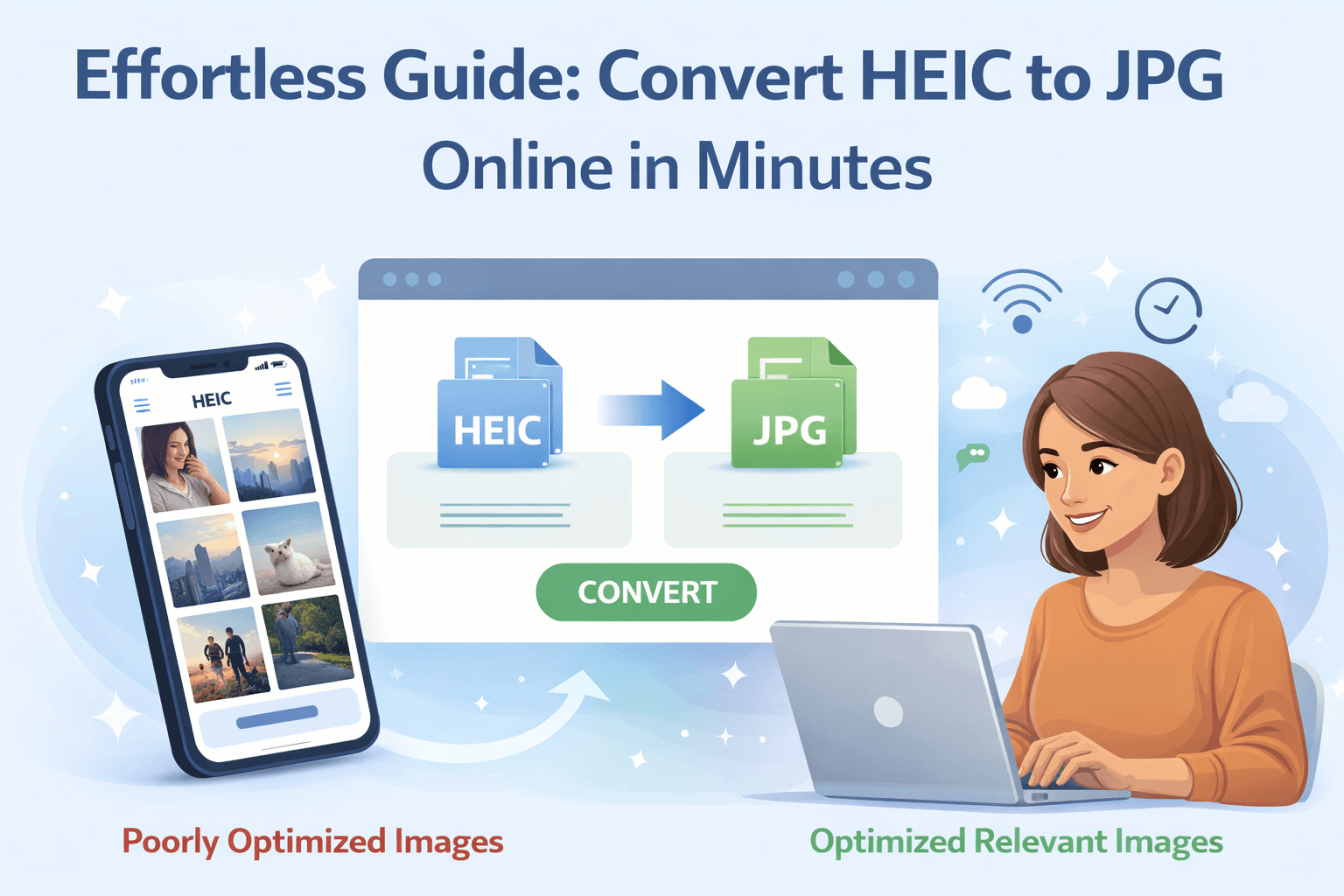
What Is HEIC and Why Can't Everyone Open It?
HEIC (High Efficiency Image Coding) is Apple's default photo format on iPhones and iPads running iOS 11 and later. It stores high-quality photos at roughly half the file size of an equivalent JPG — which is why Apple adopted it as the default for camera roll images.
The problem is compatibility. HEIC is not universally supported outside the Apple ecosystem. Windows users without the HEIC codec installed cannot open HEIC files natively. Many web platforms, email clients, CMS tools, and older photo editors reject HEIC entirely. Social media platforms typically convert HEIC on upload, but often with unpredictable quality results.
Converting HEIC to JPG solves this: JPG is the most universally accepted image format across every device, operating system, and application in use today.
Why HEIC to JPG Conversion Matters for Web and SEO
Beyond personal sharing, HEIC-to-JPG conversion matters for web publishing and SEO workflows. Most CMS platforms — WordPress, Webflow, Squarespace, and headless CMS tools — handle JPG reliably but may reject or mishandle HEIC uploads. Uploading HEIC directly risks broken images, incorrect dimensions, or format-related metadata loss that affects how image optimisation contributes to SEO rankings.
Converting to JPG (or further to WebP or AVIF for maximum performance) before uploading ensures predictable output and full control over the image that reaches your live page.
Understanding the Quality Tradeoff
HEIC files offer better compression efficiency than JPG — similar visual quality at a smaller file size. When you convert HEIC to JPG, you are trading some of that compression efficiency for universal compatibility. The quality difference is rarely perceptible to viewers at normal screen sizes, but the compression behaviour changes.
If your goal is web performance rather than just compatibility, converting HEIC to WebP or AVIF is worth considering. WebP offers broad browser support with better compression than JPG, while AVIF matches or exceeds HEIC's efficiency with wider platform compatibility than HEIC. JPG remains the right choice when you need maximum compatibility across legacy applications and platforms.
The Privacy Problem With Most HEIC Converters
HEIC photos come directly from your phone camera. They are personal — containing location metadata, timestamps, and in many cases, photos of people, places, and private moments. Most HEIC conversion tools found in search results require you to upload your files to a remote server to process the conversion.
This introduces real risks: data retention policies that are vague or absent, potential inclusion of uploaded images in AI training datasets, exposure of EXIF metadata (including GPS coordinates) to unknown third parties, and compliance issues for agencies or businesses handling client imagery. The full risk landscape of upload-based converters is covered in the guide to whether online image conversion is safe, and free tools that convert images without uploading covers how to verify whether a tool is truly client-side before trusting it with personal files.
How to Convert HEIC to JPG Using MeloTools (No Upload)
MeloTools converts HEIC files to JPG — and to WebP, AVIF, PNG, and other formats — entirely inside your browser. No files are sent to a server at any point during the process. This is verifiable: open browser DevTools, navigate to the Network tab, and run a conversion — zero outbound image upload requests appear because all processing runs locally using WebAssembly and the Canvas API.
Step-by-step:
- Open melotools.com in any modern browser
- Drag and drop your HEIC file onto the tool, or click to browse
- Select JPG as the output format
- Adjust the quality slider if needed — the default produces good results for most use cases
- Click Convert and download the JPG instantly
The entire process takes under 30 seconds for a single photo. Batch conversion for multiple HEIC files works the same way.
What Happens to Quality During HEIC to JPG Conversion
Some quality change during HEIC-to-JPG conversion is inevitable — JPG uses lossy compression, and converting between lossy formats involves a re-encoding step. In practice, at quality settings of 80 or above, the difference is not perceptible to most viewers at normal display sizes.
The settings that matter most:
- Quality 85–90: Recommended for photos you plan to print or display at large sizes
- Quality 75–80: Recommended for web publishing — good visual quality at a file size that loads quickly
- Quality below 70: Only use for thumbnails or previews where file size is critical
After converting HEIC to JPG, compressing the JPG before uploading to your CMS is the next step — a properly compressed JPG at quality 78–82 typically produces the right balance of visual quality and page load speed for web use.
How to Convert HEIC to JPG on Different Devices Without Third-Party Tools
iPhone / iPad
Go to Settings → Camera → Formats and switch from "High Efficiency" to "Most Compatible." iPhone will now shoot in JPG by default. For existing HEIC photos, the share sheet on newer iOS versions offers a "Convert to JPG" option when saving to Files.
Mac
Open the HEIC file in Preview → File → Export → select JPEG as the format. Preview's built-in export uses macOS's native image conversion pipeline with no upload required.
Windows
Install the free HEIF Image Extensions from the Microsoft Store. Once installed, the native Photos app can open HEIC files and Save As JPG. Alternatively, use a browser-based client-side tool like MeloTools for a more consistent cross-platform experience.
Privacy Best Practices for HEIC Conversion
HEIC photos from iPhone carry EXIF metadata by default — GPS coordinates, device model, shooting timestamp, and in some cases, face detection data. Before sharing converted JPG files publicly or with clients, consider:
- Stripping EXIF data from JPG before publishing to the web — location and device data is unnecessary for web images and represents a minor but real privacy exposure
- Verifying the conversion tool's metadata handling — some tools strip EXIF by default (good for privacy, check if you need orientation data preserved), others preserve it entirely
- Using client-side tools for HEIC photos containing sensitive locations or people — the technical architecture behind client-side compression explains exactly why local processing is preferable for personal imagery
Frequently Asked Questions
Does HEIC or JPG have better quality?
HEIC achieves similar or better visual quality at a smaller file size than JPG. However, JPG has universal compatibility across all devices and platforms. For web publishing, WebP or AVIF offer a better balance of compression and compatibility than either format.
Can I convert HEIC to JPG without losing quality?
Some re-encoding loss is unavoidable when converting between lossy formats. At quality settings of 80 or above, the loss is not perceptible at normal viewing distances. Use the highest quality setting your file size budget allows.
Is it safe to upload HEIC files to online converters?
It depends entirely on the tool. Upload-based converters introduce data retention and privacy risks that are particularly significant for personal photos from iPhone. Browser-based tools that process files locally — with zero server upload — eliminate these risks.
Can I convert multiple HEIC files at once?
Yes. MeloTools supports batch conversion — drag multiple HEIC files onto the tool and convert them all in a single operation.
Will the converted JPG work everywhere?
Yes. JPG is the most universally supported image format and will open on every device, operating system, application, and platform in current use.
Conclusion
Converting HEIC to JPG is a straightforward compatibility fix — but the tool you use to do it matters more than most people realise. Upload-based converters introduce unnecessary privacy risk for personal photos, while browser-based tools like MeloTools handle the conversion locally with no server exposure, consistent output, and no friction. Convert your HEIC files, compress the resulting JPGs for web use, and you have a fully optimised, universally compatible image ready for any platform.