
Free Image Converter: Convert JPG, PNG, WebP, AVIF Online

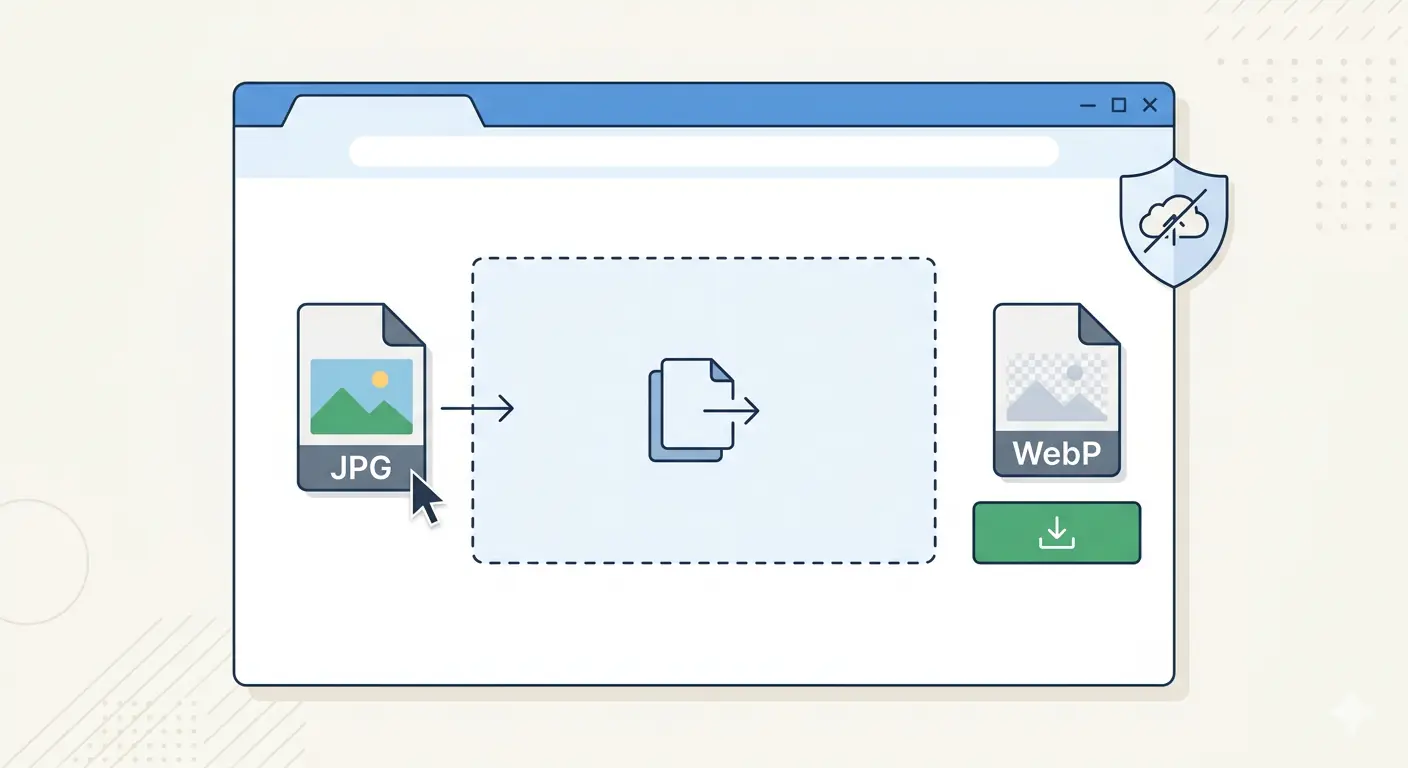
MeloTools is a free image converter that converts JPG, PNG, WebP, AVIF, and HEIC images entirely in your browser. No file uploads, no watermarks, no account required, and no usage limits on the free core tools.
If you need to convert an image format right now, the fastest path is:
- Go to melotools.com/tools/convert
- Pick your conversion pair
- Drop your image
- Download the converted file
Everything below explains how the converter works, which conversion to use for each situation, and why browser-based conversion is a fundamentally different — and better — approach than server-based alternatives.
Why a Free Image Converter Should Not Require an Upload
Every major free image converter you have used before this one follows the same architecture: you upload your file to a server, the server processes it, the server sends you the result, and the server stores your file temporarily. This is the standard model for Convertio, CloudConvert, ILoveIMG, and similar services.
The problem is not the conversion quality — it is what happens to the file. When you upload an image to a server-based converter:
- Your file travels to a third-party server in another country
- It is stored there for a processing window of seconds to hours
- It is processed by software running on hardware you have no visibility into
- It is deleted — according to their privacy policy — after processing
For personal photos this is a low-stakes workflow. For client images, unreleased product photography, internal screenshots, medical images, legal documents, or any image containing location data embedded in EXIF — it is not. You are transmitting a file to a third party with no independently verifiable evidence of how it is handled.
MeloTools is an image format converter no watermark, no upload, no server. Every conversion runs using your browser's built-in image codec — the same one that displays images on every website you visit. The file is read into browser memory, converted locally, and downloaded directly. Nothing leaves your device.
You can verify this independently: open browser DevTools (F12) → Network tab → convert any image — no upload requests appear. This is architecturally verifiable, not a privacy policy promise.
All Conversion Pairs — Complete List
MeloTools' free online image converter covers 13 conversion pairs across five formats. Here is the complete list with the use case for each:
Convert to Modern Formats
JPG to WebP — 30–35% smaller files at the same visual quality. The most impactful single conversion for improving website performance. Every JPEG on a website that is converted to WebP reduces page weight without visible quality change.
PNG to WebP — up to 70% smaller than PNG with full transparency support. Use this for design exports, UI graphics, and any PNG that needs to be smaller without losing the transparent background.
JPG to AVIF — 40–55% smaller than JPG with best-in-class compression. Use for performance-critical images — hero images, LCP candidates, product photography — where maximum file size reduction matters most.
PNG to AVIF — dramatically smaller than PNG while preserving full quality. AVIF's compression efficiency applied to graphics and illustrations.
Convert from Modern Formats
WebP to JPG — maximum compatibility. Use when a WebP image needs to be shared with systems, applications, or people whose devices do not support WebP — older email clients, legacy software, external partners.
WebP to PNG — lossless output, no quality loss on conversion. Use for editing workflows where you need to take a WebP back to a fully editable, lossless format.
HEIC to JPG — open iPhone photos on any device. iPhone and iPad cameras save photos as HEIC by default — a format that Windows, most social media platforms, and most web applications cannot read. Convert to JPG for universal compatibility.
HEIC to WebP — web-ready format, smaller than converting to JPG. When iPhone photos are intended for a website or web app, converting to WebP produces a smaller file than HEIC to JPG while maintaining full browser compatibility.
AVIF to JPG — maximum sharing and editing compatibility. AVIF is not yet universally supported in editing tools and sharing platforms — convert to JPG for files that need to work everywhere.
AVIF to PNG — lossless output with full transparency support. Convert AVIF back to PNG for editing pipelines that require lossless source files.
AVIF to WebP — broader tool compatibility, still modern format. WebP support is more universal than AVIF — this conversion maintains modern format efficiency while improving compatibility.
Convert Between Standard Formats
PNG to JPG — reduce file size for photography without transparency. PNG photographs are significantly larger than JPEG equivalents. When transparency is not needed, PNG to JPG reduces file size substantially.
JPG to PNG — lossless output for editing and transparency. Convert a JPEG to PNG when you need to add a transparent background or when the image will be edited and re-saved multiple times (avoiding JPEG's repeated quality loss on re-save).
How to Use the Free Image Converter — Step by Step
Every conversion pair follows the same workflow:
Step 1 — Choose your conversion Go to melotools.com/tools/convert and select the specific conversion you need from the hub page. The hub organises conversions into three groups: Convert to Modern Formats, Convert from Modern Formats, and Convert Between Standard Formats.
Step 2 — Add your image Drag and drop your image file onto the converter or click to browse. Supported input formats are JPG, PNG, WebP, AVIF, and HEIC. Maximum file size is 5MB on the free plan.
Step 3 — Convert The conversion runs immediately on your device — no waiting for a server response, no progress bar for an upload. Conversion of a typical web image takes under one second.
Step 4 — Download
Click Download to save the converted file to your device. The output filename follows the pattern [original-filename].[new-extension].
No account needed. No email required. No watermark added to the output. No usage counter running down. The conversion happens in your browser and produces a clean output file — nothing else.
Which Conversion Should You Use? A Quick Decision Guide
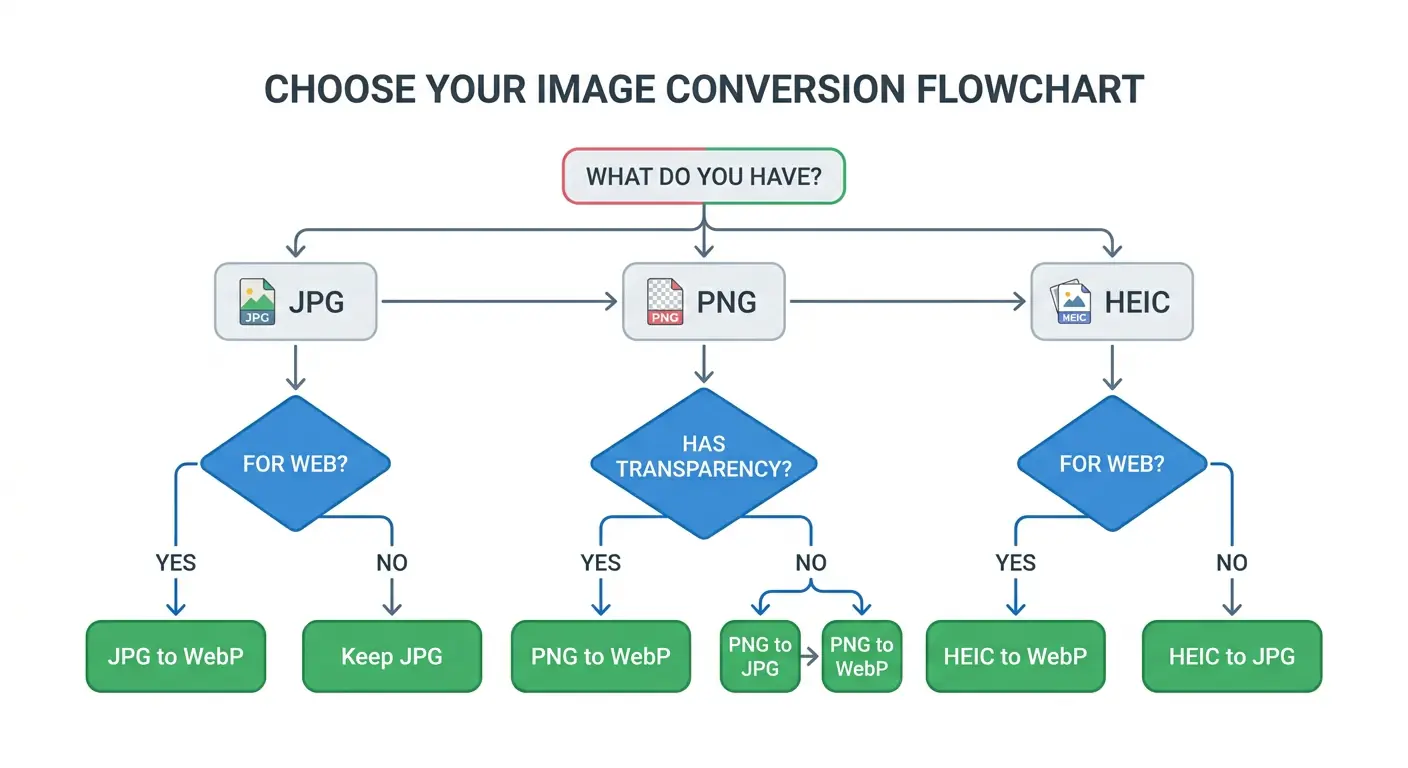
| What you have | What you need | Use this conversion |
|---|---|---|
| JPG from camera | Smaller file for website | JPG to WebP |
| PNG design export | Smaller file keeping transparency | PNG to WebP |
| JPG hero image | Maximum compression for LCP | JPG to AVIF |
| HEIC from iPhone | Open on Windows / share anywhere | HEIC to JPG |
| HEIC from iPhone | Publish on website | HEIC to WebP |
| WebP from web | Edit in Photoshop / share | WebP to PNG |
| WebP from web | Email or legacy system | WebP to JPG |
| PNG with transparency | Smaller but keep transparent BG | PNG to WebP |
| PNG photograph (no transparency) | Much smaller file | PNG to JPG |
| JPG for editing workflow | Lossless base for re-saving | JPG to PNG |
| AVIF for sharing | Compatible everywhere | AVIF to JPG |
When in doubt: JPG → WebP for photographs, PNG → WebP for graphics. These two conversions cover the majority of real-world image conversion needs and produce the most consistent results.
The Best Free Image Converter in 2026 — What to Look For
Most free online image converters in 2026 share the same set of limitations. Understanding these helps clarify what makes a converter worth using:
No watermarks — the baseline requirement. Several free converters add visible watermarks to converted files, requiring a paid plan to remove them. A free image converter that adds a watermark to your output is not a free image converter — it is a free trial. MeloTools adds no watermark to any converted file, on any plan.
No account required. Account walls before accessing a basic file conversion tool are a data collection mechanism, not a security requirement. A browser-based converter has no reason to require login — the conversion does not involve any server infrastructure that would need identity verification.
No file upload. Server-based converters upload your file to process it. Browser-based converters process the file locally. The output quality is identical — the only difference is where the processing happens and whether your file data leaves your device.
No artificial usage limits. Many free converters limit conversions to 2–5 files before requiring a paid subscription. MeloTools' free core tools have no conversion count limit — you can convert one file or one hundred files without a counter running.
Output quality should match the input. A converter that silently reduces quality during conversion — applying additional compression beyond the format change itself — produces smaller files but at a hidden cost. MeloTools applies only the format conversion, not additional compression, unless you explicitly use the compression tool.
Convert Image Format Free — Common Use Cases
Website and blog publishing. The most common use case for a free image converter is preparing images for web publishing. The standard workflow: export from Figma, Canva, or Photoshop → convert to WebP → upload to CMS. MeloTools fits into this workflow between the design tool export and the CMS upload — convert image format free with no intermediate server step.
iPhone photo sharing on Windows. iPhones save photos as HEIC by default. Windows does not natively support HEIC. Converting iPhone photos to JPG before transferring to Windows, sending via email, or uploading to a web platform solves this compatibility problem instantly. The HEIC to JPG converter handles individual photos or batches of up to 10 files simultaneously.
Social media and platform uploads. Different platforms have different format requirements. Instagram accepts JPG and PNG but historically struggles with WebP in some upload contexts. WhatsApp converts images on upload, making the source format less important but quality settings more relevant. Knowing which format your target platform prefers — and converting before upload — prevents platform-side recompression from degrading quality.
Freelance and agency workflows. Agencies and freelancers handling client assets need conversion tools that do not upload files to third-party servers. Client images may be covered by NDAs, pre-release confidentiality agreements, or simple professional ethics around data handling. Browser-based conversion removes the server upload entirely — client files never leave the device.
Developer and front-end workflows. Developers converting images for web projects benefit from a jpg to png converter free approach that fits into a terminal or browser-based workflow without requiring software installation. MeloTools requires no installation, no API key, and no configuration — open in a browser tab, convert, close.
Format Comparison: What Changes When You Convert
Understanding what format conversion actually does prevents common mistakes:
Converting JPG to WebP does not re-compress from scratch. It re-encodes the existing JPEG data using WebP's more efficient compression algorithm. The output reflects the quality level of the JPEG source — converting a heavily compressed JPEG to WebP produces a smaller WebP, but it does not recover quality data that was discarded during original JPEG compression.
Converting PNG to JPG is a lossy operation. PNG is lossless — every pixel is identical to the source. JPG uses lossy compression — some image data is permanently discarded. Converting a PNG to JPG produces a smaller file but cannot be reversed without quality loss. Keep the PNG original.
Converting any format to PNG is lossless. PNG output is always lossless — the conversion produces a pixel-accurate representation of the source image at the time of conversion. If the source was already a lossy JPEG, the PNG will accurately represent that JPEG, including any artefacts from the original compression.
Converting HEIC to JPG or WebP loses the HEIC container metadata but preserves EXIF data (camera settings, GPS coordinates, timestamps) in the output file. If you are converting iPhone photos for public sharing, consider whether EXIF GPS data should be stripped before publishing.
Why MeloTools Is the Best Free Image Converter for Web Publishing
Web performance is the context where image format conversion has the most measurable impact. The image optimization and Core Web Vitals guide covers this relationship in detail — but the short version is that converting hero images and blog content images from JPEG and PNG to WebP is one of the highest-impact single actions available for improving LCP scores and overall page speed.
The MeloTools converter is built specifically for this use case. Every conversion pair is selected because it solves a real publishing workflow problem. The no-upload architecture is designed for professional use cases where file privacy matters. The no-watermark, no-account, no-usage-limit model is designed for teams converting images at publishing cadence — not one-off personal use.
For teams publishing content regularly, the complete guide to image compression without quality loss covers the full optimisation workflow from export to upload, of which format conversion is the first step.
Frequently Asked Questions
Is MeloTools really a free image converter with no watermark?
Yes. MeloTools adds no watermark to any converted file on the free plan or any paid plan. There is no watermark to remove, no upgrade required to get clean output, and no visible attribution added to your image. The converted file is identical in content to what a paid service would produce — the only difference is where the processing happens (your browser, not their server).
Does the free image converter require creating an account?
No account is required to use any of the free core converter tools. Go to the converter page, drop your image, download the output. MeloTools offers an optional account for users who want access to higher file size limits and batch processing above 10 files, but converting images does not require one.
What is the maximum file size for free conversion?
The free plan supports image files up to 5MB per file. For most web and digital publishing images this is sufficient — a JPEG or PNG above 5MB is typically a print-resolution file that would benefit from resizing to display dimensions before conversion. The free MeloTools image compressor can reduce an oversized file before conversion if needed.
Can I convert multiple images at once?
Each individual converter page handles one image at a time. For batch conversion, use the conversion hub at melotools.com/tools/convert — browser tab operations allow multiple conversions to run simultaneously by opening the converter in multiple tabs. A dedicated batch converter interface is on the MeloTools development roadmap.
Does converting an image reduce its quality?
It depends on the conversion direction. Converting to WebP or AVIF from JPEG applies lossy compression — the output is smaller with minimal perceptible quality difference. Converting to PNG from any format is lossless — no quality loss. Converting JPEG to PNG does not recover quality lost in the original JPEG compression, but it prevents any further lossy recompression. The best image format guide for 2026 covers quality tradeoffs across all format combinations in detail.
Why does browser-based conversion produce the same quality as server-based tools?
Both use the same underlying codecs — the image encoding algorithms that define how WebP, AVIF, JPEG, and PNG data is written. The browser's built-in WebP codec and the server-side WebP library (libwebp) implement the same specification. The conversion output is equivalent. The only difference is where the computation runs — your device's CPU versus a remote server's CPU.