
How to Convert HEIC to JPG Online for Free (Fast, Private, No Software)

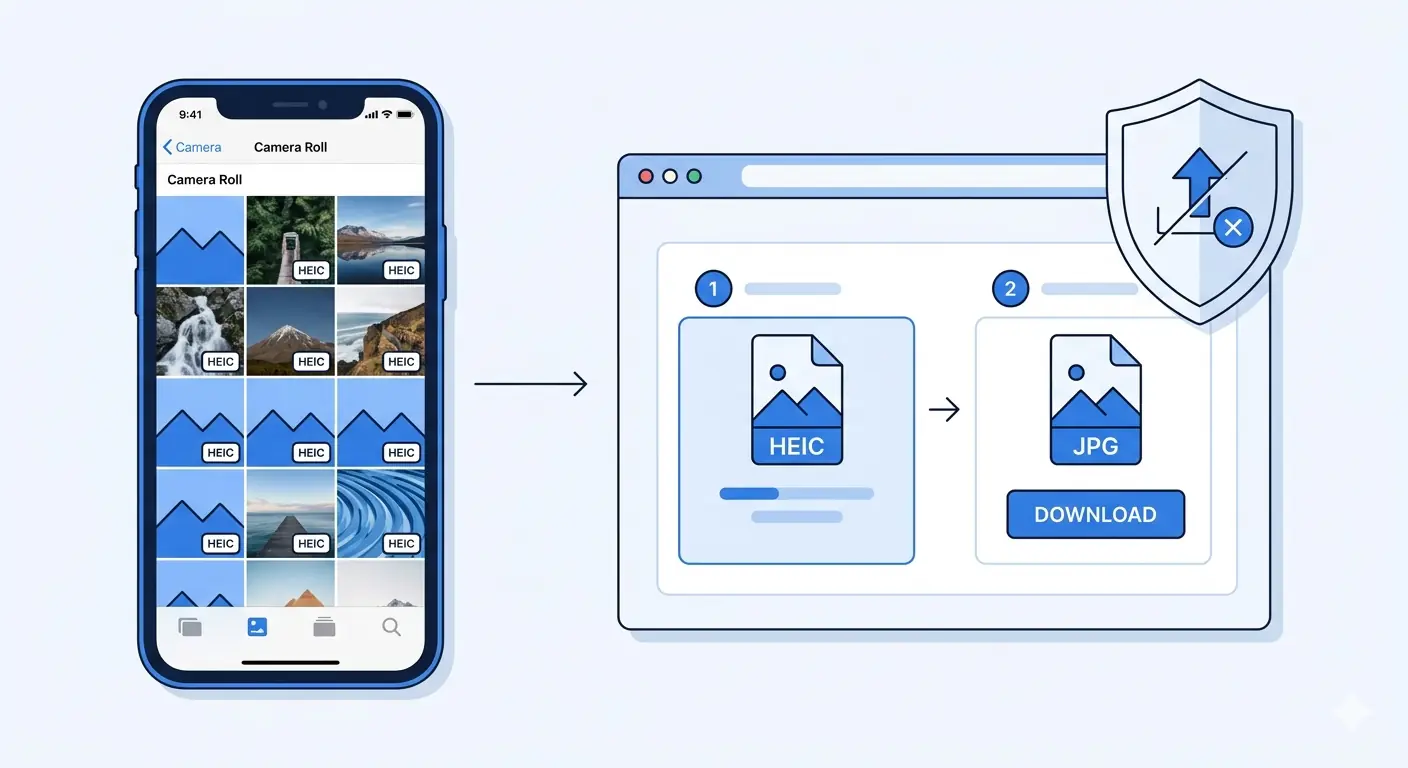
If you took photos on your iPhone and cannot open them on a Windows PC, share them on a website, or upload them to a platform that refuses the file — you have a HEIC file. This guide explains exactly what HEIC is, why it causes compatibility problems, and how to convert HEIC to JPG online for free in under 60 seconds without installing software or uploading files to any server.
What Is a HEIC File and Why Can't Windows Open It?
HEIC stands for High Efficiency Image Container. Apple introduced it as the default camera format starting with iOS 11 in 2017. Every photo taken on an iPhone or iPad since then is saved as HEIC by default — unless you manually change the camera settings.
HEIC produces significantly smaller files than JPEG at equivalent visual quality. A HEIC photo from an iPhone camera is typically 40–50% smaller than the same photo saved as JPEG. That efficiency is why Apple adopted it — it saves storage space on the device without reducing photo quality.
The compatibility problem is a licensing issue, not a technical one. HEIC is based on the HEVC (High Efficiency Video Coding) codec, which requires manufacturers to pay licensing fees to support it. Microsoft, Google, and most web platforms chose not to pay those fees by default. The result is that HEIC files are invisible to Windows Photo Viewer, cannot be uploaded to most social media platforms, and are rejected by the majority of web forms and CMS platforms that accept image uploads.
Windows 11 added partial HEIC support in 2021 via a paid codec extension, but the support remains inconsistent across apps. For reliable compatibility across all devices, platforms, and applications — converting HEIC to JPG remains the practical solution in 2026.
How to Convert HEIC to JPG Online Free — Step by Step
The fastest way to convert iPhone photos to JPG without installing software is to use a browser-based heic to jpg converter that processes files locally on your device.
MeloTools HEIC to JPG converter converts HEIC files entirely in your browser using the device's native processing capabilities — no file upload, no server, no account. The conversion happens on your device and the output is downloaded directly to your downloads folder.
Step 1 — Open the converter Go to melotools.com/tools/convert/heic-to-jpg. No login required. No cookie wall. The tool loads instantly.
Step 2 — Add your HEIC files Drag and drop your HEIC files directly onto the upload zone, or click to browse and select files from your device. You can add multiple files at once for batch conversion. Maximum file size is 5MB per file on the free plan.
Step 3 — Confirm the output format The output is set to JPG by default. If you need WebP instead — for web publishing or smaller file sizes — switch to the HEIC to WebP converter for the same browser-based, no-upload workflow.
Step 4 — Download your converted files Click Download on each converted file or use Download All for batch export. Files are cleared from browser memory automatically — there is nothing stored on any server because nothing was ever sent to one.
Total time from opening the tool to downloaded JPG: under 60 seconds for a single file, under 3 minutes for a batch of 10.
Why HEIC to JPG Conversion Needs to Be Private
Most HEIC converter tools online are server-based. Your iPhone photo is uploaded to a remote server, processed, stored temporarily, and then deleted — according to their privacy policy. The practical reality is different from the policy.
iPhone photos contain embedded EXIF data including GPS coordinates, timestamps, device model, and sometimes location names. When you upload a HEIC photo to a server-based converter, you are transmitting this metadata to a third party's infrastructure with no visibility into how it is handled, how long it is retained, or who else can access it during the processing window.
For personal travel photos this may be an acceptable risk. For photos containing children, home addresses embedded in GPS data, or any image taken at a location you would prefer to keep private — it is not.
Browser-based HEIC to JPEG online conversion eliminates this entirely. Files are read into browser memory, converted using the device's processing capability, and downloaded directly. No data leaves the device at any point. You can verify this independently by opening browser DevTools (F12) → Network tab while converting — no upload requests appear because no upload occurs.
How to Open HEIC Files on Windows Without Converting
If you only need to view HEIC files on Windows rather than share or upload them, there are three options that do not require conversion:
Option 1 — Install the HEVC Video Extensions from the Microsoft Store Microsoft offers a paid HEVC codec ($0.99) that adds native HEIC support to Windows Photos and most Windows apps. Once installed, HEIC files open directly without conversion. This is the cleanest solution for users who primarily need to view iPhone photos on a single Windows machine.
Option 2 — Use CopyTrans HEIC for Windows (free) CopyTrans HEIC is a free Windows shell extension that adds HEIC support to Windows Explorer and Windows Photos without cost. After installation, HEIC files display thumbnails in File Explorer and open in Windows Photos like any other image format.
Option 3 — Use a browser-based viewer Drag a HEIC file into a Chrome or Firefox browser tab — modern browsers can display HEIC files natively since Chrome 105 and Firefox 116. This works for quick viewing but does not help with uploading or sharing.
For anyone who regularly shoots on iPhone and works primarily on Windows, converting HEIC to JPG at the point of transfer remains the most reliable approach. The open heic files windows search query generates over 1,600 monthly searches because the native Windows experience remains inconsistent even in 2026.
HEIC vs JPG — When Should You Keep HEIC?
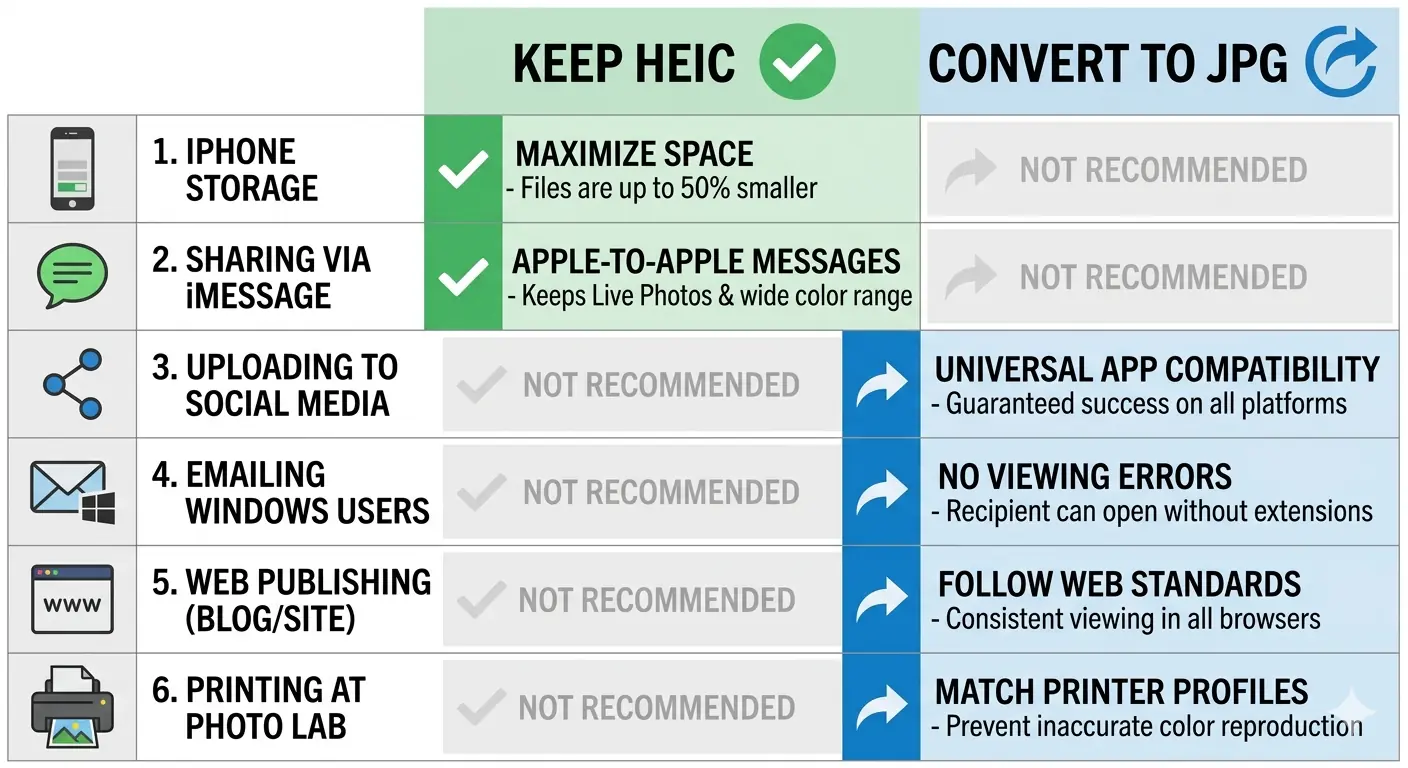 Understanding when to keep HEIC and when to convert avoids unnecessary conversion steps:
| Situation | Keep HEIC | Convert to JPG |
|---|---|---|
| Storing photos on iPhone/Mac | ✅ Smaller files, same quality | Not needed |
| Sharing with other iPhone users via iMessage | ✅ Native support | Not needed |
| Uploading to Instagram, Facebook, X | ❌ Often rejected | ✅ Convert first |
| Uploading to a website or CMS | ❌ Rarely supported | ✅ Convert first |
| Sending via email to Windows users | ❌ Cannot be opened | ✅ Convert first |
| Printing at a photo lab | ❌ Most labs reject HEIC | ✅ Convert first |
| Editing in Photoshop, Lightroom (older versions) | ❌ Limited support | ✅ Convert first |
| Archiving originals on external drive | ✅ More files fit | Not needed |
| Web publishing — blog, portfolio, ecommerce | ❌ Not web-compatible | ✅ Convert to WebP or JPG |
The pattern is clear: keep HEIC within the Apple ecosystem, convert before leaving it.
How to Stop Your iPhone Camera Saving Photos as HEIC
If you frequently need to share or upload iPhone photos and find yourself converting HEIC files regularly, the simplest fix is to change the iPhone camera format setting so photos are captured as JPEG directly.
On iPhone (iOS 11 and later):
- Open Settings
- Scroll to Camera
- Tap Formats
- Select Most Compatible instead of High Efficiency
From this point, the camera saves photos as JPEG. The trade-off is approximately twice the storage usage per photo. If storage is a concern, keep HEIC enabled and convert only the photos you need to share.
Alternative — AirDrop conversion on transfer: When AirDropping iPhone photos to a Mac, iOS automatically converts HEIC to JPEG if the receiving Mac does not support HEIC. This setting is controlled in Settings → Camera → Formats → Transfer to Mac or PC → select Automatic. This is the most seamless option for users who regularly transfer photos to a Windows PC via cable — the conversion happens silently during the transfer.
HEIC to WebP — The Better Option for Web Publishing
For anyone converting iPhone photos for web publishing — blogs, portfolios, e-commerce product pages, or editorial content — converting to WebP rather than JPG produces better results.
WebP typically produces files 25–35% smaller than JPEG at equivalent visual quality. For a website where image file size directly affects page speed, LCP scores, and Core Web Vitals — converting iPhone photos to WebP rather than JPG adds an additional performance layer on top of the HEIC-to-compatible-format conversion.
The MeloTools HEIC to WebP converter handles this in the same browser-based workflow. No upload, no account, no software — the converted WebP file is ready to upload directly to a CMS, an image CDN, or a Next.js project.
For a complete overview of when to use WebP versus JPG for web delivery, the guide to the best image format for web in 2026 covers format selection across all modern options including AVIF.
Batch Converting iPhone Photos to JPG
For larger photo libraries — travel collections, event photography, product shoots — batch conversion saves significant time. MeloTools supports up to 10 files per batch on the free plan.
For the most efficient batch workflow:
- Connect your iPhone to the PC or Mac via USB cable
- On Windows: open File Explorer → This PC → Apple iPhone → Internal Storage → DCIM → select the HEIC files you need
- Copy them to a local folder
- Open MeloTools HEIC to JPG converter
- Drag all files into the converter simultaneously
- Download All once conversion completes
For batches larger than 10 files, process in groups of 10. The conversion for each group takes under 60 seconds, so a batch of 50 photos takes approximately 5 minutes total.
For professional photographers or agencies regularly processing hundreds of HEIC files, a dedicated desktop application like ImageMagick or ExifTool provides command-line batch conversion without file limits — though both require technical setup. For non-technical users, the browser-based approach above handles most real-world volumes without any configuration.
Understanding HEIC Metadata After Conversion
One consideration when converting iPhone photos to JPG for sharing is EXIF metadata handling. HEIC files contain rich metadata including:
- GPS coordinates (exact location where the photo was taken)
- Timestamp (date, time, and timezone)
- Device model and iOS version
- Camera settings (aperture, shutter speed, ISO)
- Face detection data from iPhone's computational photography
This metadata transfers to the JPG output during conversion. For most personal use this is harmless. For photos shared publicly — on social media, websites, or portfolios — consider stripping EXIF data before upload to remove location information.
Most image compression tools including MeloTools' image compressor strip or reduce EXIF metadata during compression, which can be run as an additional step after the HEIC to JPG conversion for photos intended for public web use.
Frequently Asked Questions
Is it free to convert HEIC to JPG online?
Yes. MeloTools HEIC to JPG conversion is completely free with no account required. The free plan supports files up to 5MB per image and batch conversion of up to 10 files simultaneously. No watermarks are added to converted files.
Why won't my HEIC file open on Windows?
Windows does not natively support the HEIC format because it uses the HEVC codec, which requires a licensing fee that Microsoft does not include by default. You can install the HEVC Video Extensions from the Microsoft Store for $0.99, use a free third-party extension like CopyTrans HEIC, or convert the HEIC file to JPG using a free heic file converter free online tool like MeloTools.
Does converting HEIC to JPG reduce image quality?
HEIC to JPG conversion involves re-encoding from one lossy format to another, which introduces a small quality reduction. At quality settings of 80–90%, the difference is imperceptible at normal viewing sizes. The visible quality difference between a well-converted JPG and the original HEIC is negligible for sharing, web publishing, and printing at standard sizes.
Can I convert HEIC to JPG on my phone without an app?
Yes. Open a browser on your iPhone or Android phone, go to melotools.com/tools/convert/heic-to-jpg, select your HEIC files from the photo library, and download the converted JPG. The entire conversion runs in the mobile browser — no app installation required.
Is it safe to convert iPhone photos online?
It depends on the tool. Server-based converters upload your files — including embedded GPS and timestamp data — to a remote server. Browser-based converters like MeloTools process files entirely on your device with no upload. For photos containing location data or images of private spaces, browser-based conversion is significantly safer than server-based alternatives.
How do I convert multiple HEIC files to JPG at once?
Select all the HEIC files you want to convert and drag them simultaneously into the MeloTools converter. Up to 10 files can be processed in a single batch. Once conversion completes for all files, use Download All to export them together. For batches larger than 10, process in groups.
What is the difference between HEIC and HEIF?
HEIF (High Efficiency Image File Format) is the container format standard. HEIC is Apple's specific implementation of HEIF that uses HEVC encoding. In practice, HEIC and HEIF files are interchangeable — both use the .heic or .heif extension and require the same conversion process for compatibility with non-Apple systems.