
How to Optimize Images for Core Web Vitals: LCP, CLS and INP

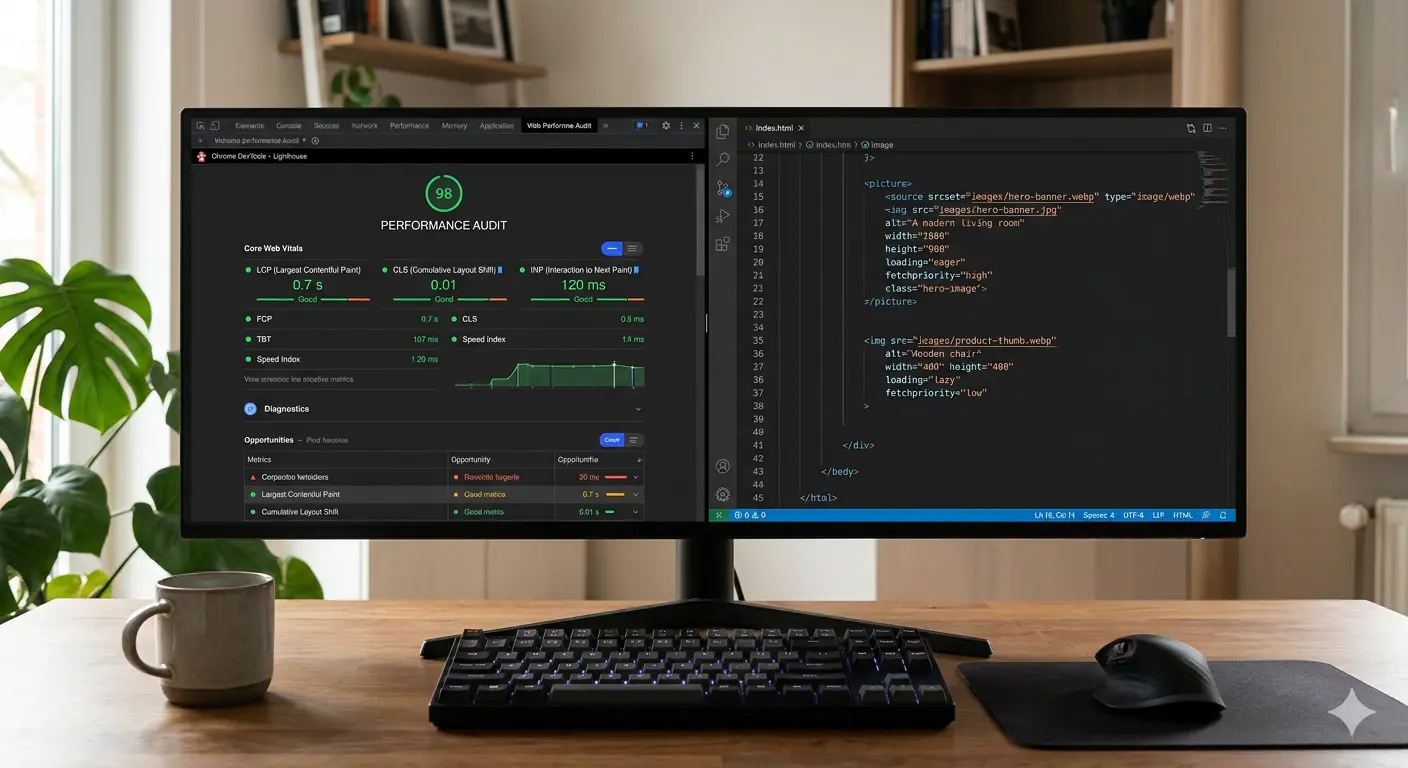
Images are the single largest contributor to Core Web Vitals failures across the web. On most pages, images account for more than half the total page weight, and every kilobyte that reaches the browser late or unexpectedly shifts something visible to the user.
Getting image optimization core web vitals right is not about chasing a perfect Lighthouse score in isolation. It is about delivering a measurably faster, more stable experience: pages that paint quickly, layouts that do not jump, and interactions that respond without delay. In 2026, Google's ranking systems treat these signals as direct quality indicators, which means poor image handling has both UX and SEO consequences.
This guide covers every dimension of the relationship between images and Core Web Vitals: LCP, CLS, and INP. Each section includes the root cause, the correct fix, and implementation code you can apply today.
What Are Core Web Vitals and Why Do Images Drive Most Failures?
Core Web Vitals are Google's set of real-user experience metrics that measure loading performance, visual stability, and interactivity. The three active metrics are:
Largest Contentful Paint (LCP): How long it takes for the largest visible element, most often a hero image, to fully render on screen. Google's threshold for a "Good" LCP is under 2.5 seconds.
Cumulative Layout Shift (CLS): How much visible content unexpectedly shifts position during the page load. A "Good" CLS score is under 0.1.
Interaction to Next Paint (INP): How quickly the page responds visually after a user interaction. A "Good" INP is under 200ms.
Images appear in all three. An oversized hero image wrecks LCP. An image without dimensions causes CLS. A large undecoded image stalls the main thread and hurts INP.
Understanding which metric each image problem belongs to is the first step toward fixing it.
LCP Image Optimization: The Highest-Impact Fix on Most Pages
The LCP element is the largest piece of content visible in the viewport during load. On most marketing pages, blog posts, and product pages, that element is an image. This makes lcp image optimization the single highest-leverage task in any Core Web Vitals audit.
What Causes a Poor LCP Score?
LCP fails for four main reasons, all of which are image-related:
Slow resource discovery. If the LCP image is set as a CSS background or injected via JavaScript, the browser cannot find it during the initial HTML parse. It waits for CSS or JS to execute before it even knows the image exists, adding hundreds of milliseconds before the download begins.
Large file size. An uncompressed 800KB JPEG hero image will always produce a poor LCP on mobile connections. Format and compression decisions directly control how long the browser spends downloading the file.
No preload directive. The browser processes resources in order. Without a preload hint, the LCP image competes with stylesheets, scripts, and other page assets for bandwidth during the critical rendering window.
No priority rendering hint. Modern browsers support fetchpriority="high" on image elements, which signals that this image should be prioritised in the network queue. Without it, the browser treats all images with equal priority.
How to Optimize Your LCP Image
Step 1: Ensure the LCP image is in HTML, not CSS.
Place your hero image in an <img> element, not a background-image property. The browser discovers <img> tags during HTML parsing, before it processes CSS.
<!-- Correct: discoverable at parse time -->
<img
  src="/images/hero.webp"
  alt="Hero image description"
  width="1200"
  height="630"
  fetchpriority="high"
>
Step 2: Add a preload link in the <head>.
<link
  rel="preload"
  as="image"
  href="/images/hero.webp"
  fetchpriority="high"
>
This instructs the browser to begin fetching the image immediately, before the main page rendering pipeline reaches it.
Step 3: Convert to WebP.
WebP files are 25 to 35 percent smaller than JPEG at equivalent visual quality. A 600KB JPEG hero becomes approximately 380KB in WebP. That difference is directly reflected in LCP. To convert your images to WebP without uploading them to an external server, use the MeloTools image converter which processes everything locally in your browser.
Step 4: Size images correctly.
Never serve a 3000px image for a layout that displays at 1200px. Use srcset to serve different sizes based on viewport:
<img
  src="/images/hero-1200.webp"
  srcset="/images/hero-600.webp 600w, /images/hero-1200.webp 1200w"
  sizes="(max-width: 600px) 600px, 1200px"
  alt="Hero image description"
  width="1200"
  height="630"
  fetchpriority="high"
>
To optimize lcp image 2026 properly, this combination of WebP format, correct sizing, preload directive, and fetchpriority="high" covers every technical lever available. Implementing all four typically reduces LCP by 30 to 60 percent on pages where the LCP element is an image.
CLS and Image Layout Shift: Why Missing Dimensions Cost You Rankings
Cumulative Layout Shift measures visual instability. When visible content moves unexpectedly during load, users lose their place, accidentally tap wrong elements, and lose trust in the page. CLS image layout shift is the most common and most fixable source of layout instability across the web.
Why Images Cause Layout Shift
The browser builds the page layout before all images are downloaded. If an image has no declared dimensions, the browser reserves zero space for it in the layout. When the image eventually loads and its real dimensions are known, the browser reflows the layout to accommodate it. Every element below the image shifts downward. That shift is measured and recorded as CLS.
The Fix: Always Declare Width and Height
<!-- Without dimensions: causes layout shift -->
<img src="/images/article-photo.webp" alt="Article photo">

<!-- With dimensions: browser reserves space, no shift -->
<img
  src="/images/article-photo.webp"
  alt="Article photo"
  width="800"
  height="450"
>
Setting width and height allows the browser to calculate the aspect ratio before the image loads and reserve the correct amount of space. The image loads into an already-reserved slot, so no surrounding content moves.
Using CSS aspect-ratio for Fluid Layouts
In responsive designs where image dimensions cannot be fixed in HTML, use the CSS aspect-ratio property to preserve the space reservation:
img {
  width: 100%;
  height: auto;
  aspect-ratio: 16 / 9;
}
This ensures the browser maintains the correct proportional space even as the image scales with the viewport.
Other CLS Image Sources to Audit
Beyond missing dimensions, these patterns also cause cls image layout shift:
Dynamically injected images. Images added to the DOM by JavaScript after initial render cannot have space pre-reserved. If you must inject images dynamically, use a container with a fixed height or aspect-ratio set in CSS before the image loads.
Images inside ad slots. Ad images from third-party scripts often load late and without pre-declared dimensions. Use fixed-height ad containers and never allow ad images to push content down after initial paint.
Images in carousels. Carousel components that shift image dimensions during transition can contribute to CLS. Ensure the carousel container has a fixed height at all breakpoints.
Image Lazy Loading and Core Web Vitals: Where It Helps and Where It Harms
Lazy loading is one of the most widely recommended image optimizations, and also one of the most commonly misapplied. Understanding how image lazy loading core web vitals interact requires separating two distinct contexts: above-the-fold images and below-the-fold images.
Never Apply Lazy Loading to the LCP Image
This is the most consequential mistake in lazy loading implementation. The loading="lazy" attribute tells the browser to defer fetching the image until it is near the viewport. For the LCP image, which is already in the viewport, this creates a direct conflict: the browser waits for the image to approach the viewport before fetching it, when in fact it is already there.
The result is a significant, avoidable LCP regression.
<!-- Never do this for above-the-fold images -->
<img src="/images/hero.webp" loading="lazy" alt="Hero"> <!-- Wrong -->

<!-- Correct: no lazy loading, add fetchpriority instead -->
<img src="/images/hero.webp" fetchpriority="high" alt="Hero"> <!-- Correct -->
A reliable audit rule: the first image visible on any page should never have loading="lazy".
Apply Lazy Loading to All Below-the-Fold Images
For every image that starts outside the viewport, lazy loading is the correct default. It defers network requests for images the user may never scroll to, reducing initial page weight and improving Time to First Byte indirectly.
<img
  src="/images/section-photo.webp"
  alt="Section photo"
  width="800"
  height="450"
  loading="lazy"
  decoding="async"
>
The decoding="async" attribute is also valuable here. It offloads image decoding from the main thread, preventing large images from blocking JavaScript execution and contributing to INP delays.
Combine Lazy Loading with Explicit Dimensions
Lazy loading and CLS prevention are not mutually exclusive. Always pair loading="lazy" with explicit width and height attributes. Without them, the browser cannot reserve space for the deferred image, and a layout shift occurs when it eventually loads.
WebP and Core Web Vitals: Format Choice as a Performance Decision
Format selection is the upstream decision that determines how much work every other optimization has to do. Delivering images in the wrong format means that compression, sizing, and lazy loading all have to work harder to compensate for avoidable file weight.
Why WebP Is the Correct Default in 2026
WebP core web vitals improvements are straightforward: smaller files download faster, and faster downloads mean lower LCP. WebP produces files 25 to 35 percent smaller than JPEG and up to 26 percent smaller than PNG at equivalent visual quality. Browser support is now effectively universal across Chrome, Firefox, Safari, and Edge.
For a detailed walkthrough of converting images to WebP and handling format fallbacks, the MeloTools guide to PNG to WebP conversion covers quality settings and HTML implementation in full.
When to Use AVIF Instead
AVIF delivers even better compression than WebP, often 40 to 50 percent smaller than JPEG. It is the optimal choice for high-quality hero images and photography on performance-critical pages. The tradeoff is higher encoding cost and marginally lower browser adoption compared to WebP.
Use the <picture> element to serve AVIF with a WebP fallback:
<picture>
  <source srcset="/images/hero.avif" type="image/avif">
  <source srcset="/images/hero.webp" type="image/webp">
  <img
    src="/images/hero.jpg"
    alt="Hero image"
    width="1200"
    height="630"
    fetchpriority="high"
  >
</picture>
This pattern serves AVIF to browsers that support it, WebP to the remaining modern browsers, and JPEG only as a final fallback for legacy environments. The browser selects the first source it can handle, so format priority matters.
Compress at the Right Quality Level
Format alone is not enough. Compression level determines the balance between file size and visual quality. For WebP, a quality setting between 75 and 85 is the correct range for most web images. Below 75, compression artifacts become visible at normal viewing distances. Above 85, file size increases with diminishing visual returns.
The MeloTools image compressor processes images locally in your browser, so files never reach an external server. For teams handling client assets or proprietary imagery, this matters as much as the compression result itself.
INP and Images: The Indirect Connection Most Audits Miss
INP replaced First Input Delay as a Core Web Vitals metric in March 2024. It measures the full response time from user interaction to the next visual update. While INP is primarily a JavaScript and rendering concern, images affect it in two specific ways that are worth auditing.
Image Decoding and Main Thread Blocking
When a browser decodes a large image synchronously, it can block the main thread. If a user interaction occurs during that decoding window, the interaction response is delayed. The result is a poor INP score on image-heavy pages with large unoptimized files.
Adding decoding="async" to non-LCP images instructs the browser to decode them off the main thread:
<img
  src="/images/article-image.webp"
  alt="Article image"
  width="800"
  height="450"
  loading="lazy"
  decoding="async"
>
This is particularly valuable for pages with multiple large images, such as galleries, portfolios, or product listing pages.
Memory Pressure from Uncompressed Images
Large uncompressed images consume significant memory once decoded. On mobile devices, high memory usage triggers garbage collection cycles, which pause the JavaScript engine and introduce interaction delays. Keeping image file sizes controlled through format and compression decisions reduces the decoded memory footprint across the page.
For pages with ten or more images, the cumulative memory difference between serving optimized WebP files versus unoptimized JPEG originals can be significant enough to affect INP scores on lower-powered devices.
Image Optimization Core Web Vitals Audit Checklist
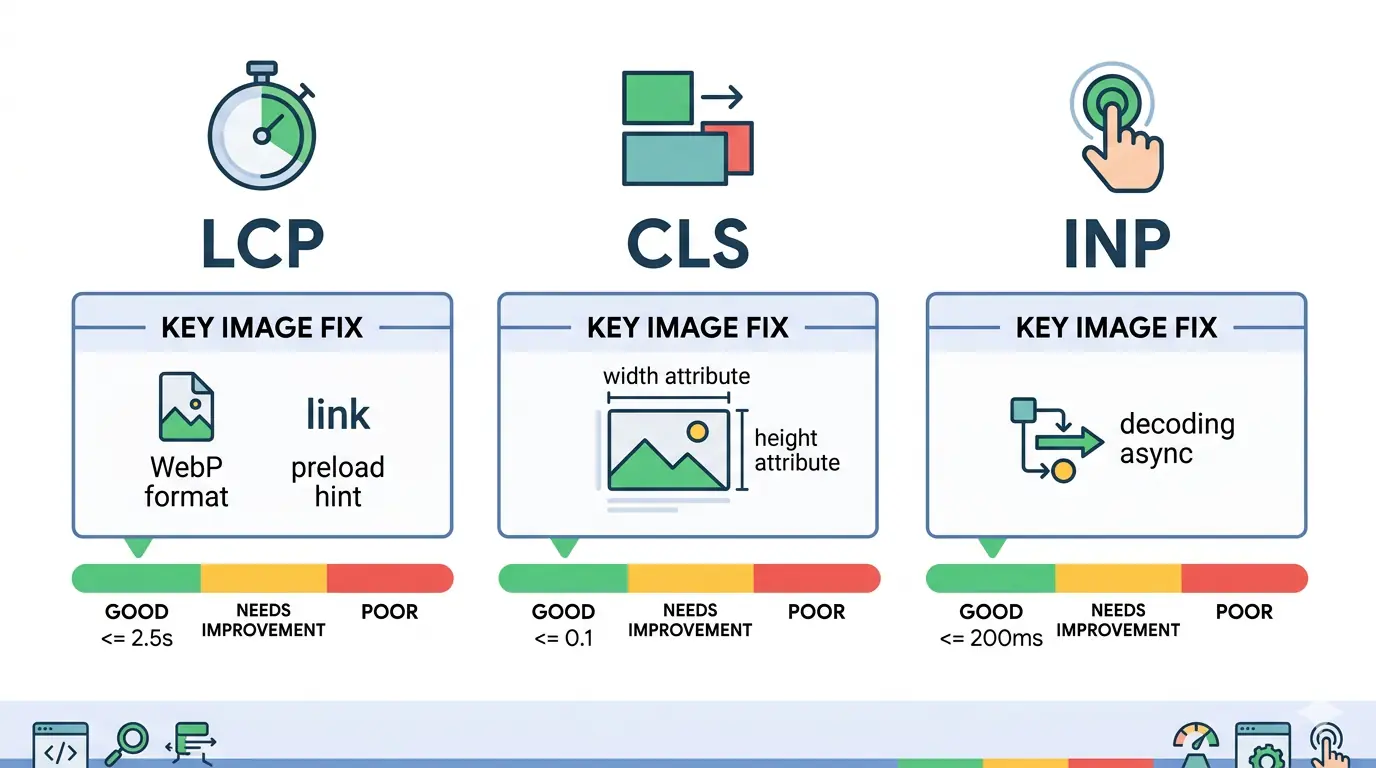 Use this checklist when auditing any page:
LCP
- Is the LCP element an
<img>tag, not a CSS background image? - Does the LCP image have
fetchpriority="high"set? - Is there a
<link rel="preload">for the LCP image in the<head>? - Is the LCP image served in WebP or AVIF format?
- Is the LCP image sized to match its maximum display dimensions?
CLS
- Do all images have explicit
widthandheightattributes? - Are fluid layout images using
aspect-ratioin CSS? - Are dynamically injected images using pre-reserved containers?
INP
- Do non-LCP images have
decoding="async"? - Are below-the-fold images using
loading="lazy"? - Are all images compressed to reasonable file sizes before upload?
Format
- Are images served as WebP by default?
- Are hero images using the
<picture>element with AVIF as the primary source? - Is JPEG reserved only as a fallback for legacy browsers?
Frequently Asked Questions
What is the biggest image-related cause of a poor LCP score?
The most common cause of a poor LCP score is an unoptimized hero image: large file size, no preload directive, served in JPEG instead of WebP, and missing priority rendering hints. A correctly sized WebP hero image with fetchpriority="high" and an early preload link tag typically reduces LCP by 30 to 60 percent on most pages.
Does lazy loading images improve Core Web Vitals?
Lazy loading improves overall page weight and can reduce Total Blocking Time indirectly, but it must never be applied to the LCP image. The LCP image must load immediately. Applying loading="lazy" to the LCP element delays it behind the viewport deferral mechanism, which directly worsens your LCP score. Only apply lazy loading to images that appear below the fold.
How do missing width and height attributes cause CLS?
When width and height attributes are absent, the browser cannot calculate the image aspect ratio before the file downloads. This means no space is reserved in the layout. When the image loads and the browser renders its actual dimensions, surrounding content shifts position. This movement is recorded as Cumulative Layout Shift and penalises your Core Web Vitals score.
Is WebP better than JPEG for Core Web Vitals?
Yes. WebP produces files 25 to 35 percent smaller than JPEG at equivalent visual quality. Smaller files download faster, which directly reduces LCP. WebP also supports lossless compression and transparency, making it a more versatile replacement for both JPEG and PNG across most web publishing use cases in 2026. Browser support is now effectively universal.
Can images affect INP (Interaction to Next Paint)?
Images affect INP indirectly. Heavy images that have not been decoded before a user interaction can cause the main thread to stall during decoding. Using decoding="async" offloads this work from the main thread. Additionally, uncompressed images increase memory pressure and garbage collection activity, both of which contribute to interaction delays on lower-powered devices.
What image format should I use for Core Web Vitals in 2026?
WebP is the recommended default for most images in 2026. AVIF offers better compression for high-quality hero images and photography. Use the <picture> element with AVIF as the primary source and WebP as the fallback to cover all modern browsers. Avoid JPEG as the default delivery format: it consistently produces larger files for the same visual output.
Start With the Image That Matters Most
Every Core Web Vitals improvement starts with a diagnosis. Identify your LCP element, check whether it has dimensions declared, confirm the format, and verify the preload chain. Most pages have one or two image issues responsible for the majority of their score problems.
The fixes in this guide are cumulative. Converting your LCP image to WebP, adding fetchpriority="high", setting explicit dimensions on every image, applying loading="lazy" correctly below the fold, and using decoding="async" on non-critical images: together, these changes address LCP, CLS, and INP in a single pass.
To convert and compress images without uploading them anywhere, MeloTools processes everything locally in your browser, keeping your files private while giving you the format and quality control you need to hit your Core Web Vitals targets.